
Notion Calendar
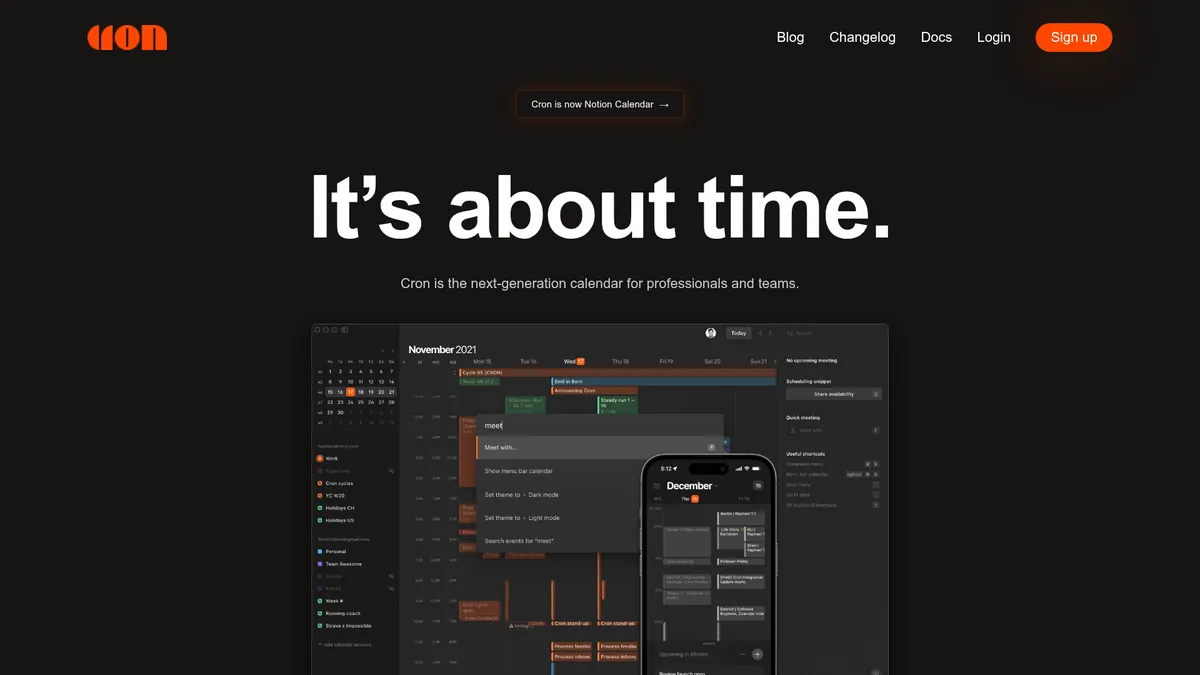
Next-gen calendar natively integrated with Notion
What is Notion Calendar?
How to Use Notion Calendar
Getting started with Notion Calendar is straightforward if you already use Notion. This guide walks you through embedding a calendar in a Notion page, syncing your external calendars, and using team scheduling features. Follow these steps to turn Notion into your central scheduling hub.
Embed a Calendar Block in Notion
Navigate to any Notion page where you want to add a calendar. Type '/cron' or '/calendar' and select the Cron Calendar block from the menu. The calendar will appear as a new block on your page, ready to display events.
Sync Your External Calendar
Click on the settings gear icon in the calendar block and choose 'Connect Calendar'. Select your provider (Google, Outlook, or Apple) and authorize the connection. Your existing events will appear immediately, and all future changes will sync automatically.
Create and Customize Events
Click any date or time slot on the calendar to create a new event. Add a title, set the duration, choose a color, and attach any relevant Notion pages, files, or comments. You can also set recurring schedules and reminders.
View Team Availability
If you're working in a shared workspace, click the 'Find a Time' button to see when your teammates are free. The calendar will display overlapping free slots, making it easy to schedule meetings without leaving Notion.
Share Your Calendar Externally
To share a read-only view with clients or stakeholders, click 'Share' on your calendar and generate a public link. Copy the link and send it via email or embed it on a website. Recipients don't need a Notion account to view the calendar.
Notion Calendar Core Features
Notion Calendar Use Cases
- 1Project Timeline Management: Visualize task deadlines and milestones directly within a Notion project page. Cron transforms Notion databases into dynamic Gantt-style timelines, helping teams track progress without leaving their workspace.
- 2Team Meeting Coordination: Find common free slots and schedule recurring stand-ups, sprint planning, or one-on-ones directly inside Notion. The 'Find a Time' feature shows teammates' availability at a glance, eliminating the back-and-forth of scheduling.
- 3Personal Productivity: Keep personal appointments synced with Google Calendar while staying inside Notion. Manage your entire day — from work deadlines to personal errands — in one unified calendar view.
- 4Resource Booking: Reserve rooms, equipment, or shared assets using calendar events linked to Notion inventory databases. This is ideal for teams that need to manage physical resources alongside project timelines.
- 5Client-facing Schedules: Share read-only public calendars with clients for transparent delivery timelines. External stakeholders can view project milestones and deadlines without needing a Notion account.
Pros and Cons of Notion Calendar
Pros
- Deep native integration with Notion eliminates context switching by bringing full calendar functionality directly into your workspace.
- Two-way automatic sync with Google, Outlook, and Apple calendars ensures changes are reflected everywhere instantly.
- Rich event metadata — including file attachments, comments, checklists, and linked pages — enhances collaboration and keeps all context in one place.
- Team availability view and Find a Time streamline scheduling, making it easy to coordinate meetings without leaving Notion.
✕ Cons
- Public pricing and detailed documentation are currently hard to locate (pricing page returns 404), making it difficult to evaluate cost.
- Feature set is still evolving; some advanced calendar functions like resource booking rules are limited compared to dedicated calendar tools.
- Reliance on Notion means it's less useful for teams that don't already use Notion as their primary workspace and project management hub.
Notion Calendar vs Top Alternatives
| Feature | Google Calendar | Calendly | Fantastical | Motion |
|---|---|---|---|---|
| Native Notion Integration | No native Notion integration | No native Notion integration | No native Notion integration | No native Notion integration |
| Two-Way Calendar Sync | Syncs with Google/Outlook/iCloud | Syncs with Google/Outlook | Syncs with multiple calendars | Syncs with Google Calendar |
| Team Scheduling Features | Basic free/busy scheduling | Advanced booking and scheduling | Advanced scheduling and time zones | AI-powered task and schedule management |
| Pricing | Free for personal use | Free tier; Paid from $8/mo | Paid from $4.99/mo | Paid from $19/mo |
Notion Calendar Pricing
Free
- Two-way sync with one external calendar
- Embedded calendar views in Notion
- Basic event types and tags
- Mobile apps with push notifications
Starter
- Multiple calendar layers
- Team availability view
- Advanced filtering and search
- Rich event details with attachments
Team
- All Starter features
- Analytics dashboard
- Permissions and access controls
- Slack and Teams notifications
Enterprise
- Custom integrations
- Priority support
- Enterprise security compliance
- Dedicated account manager
Notion Calendar FAQ
What is Notion Calendar (formerly Cron)?+
Is Notion Calendar free to use?+
Does Notion Calendar sync with Google Calendar?+
Can I use Notion Calendar without a Notion account?+
Does Notion Calendar have mobile apps?+
Can I share my calendar with people who don't use Notion?+
What are the system requirements for Notion Calendar?+
Notion Calendar Review — Editor's Score
Who Should Use Notion Calendar?
Notion Calendar is ideal for teams and individuals who rely on Notion as their central workspace and want to manage schedules, deadlines, and meetings without leaving the platform. It's less suited for organizations that don't use Notion or need advanced enterprise calendar features.
Cron (Notion Calendar) is a brilliant solution for teams that live in Notion. It eliminates the hassle of switching between your calendar and project management tool by bringing scheduling directly into your workspace. While it's still evolving and pricing transparency is a concern, the core experience — especially the two-way sync and team availability features — is polished and genuinely useful.
- Native Notion integration eliminates context switching
- Two-way sync with Google, Outlook, and Apple calendars
- Team availability and Find a Time streamline scheduling
- Rich event details with file attachments and linked pages
📺 Notion Calendar Tutorials & Introduction
Notion Calendar Tutorial for Beginners (2025) - YouTube
How to plan and organize your life with the new NOTION CALENDAR
The Ultimate Notion Calendar Beginner Guide (2025) - YouTube
Keywords: